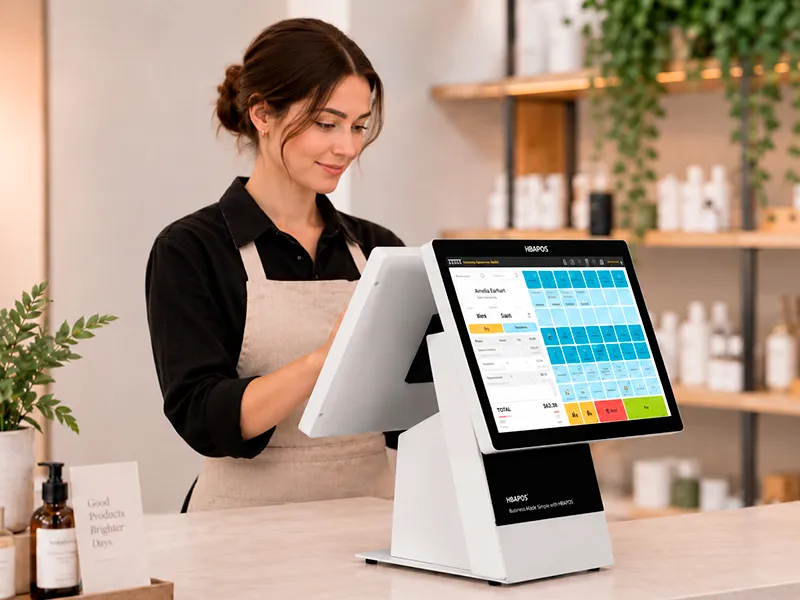
reliable pos system is not just a tool for processing transactions—it’s the backbone of daily operations. Over the past decade, I have witnessed firsthand how critical it is to keep these systems running smoothly. Whether it’s during a hectic dinner rush or late-night shifts, any malfunction can disrupt service and impact revenue.This guide, inspired by insights from leading industry resources and my own experience, provides a detailed look at common pos system issues and practical solutions for each. With hbapos products backing these solutions
Common POS System Faults and Their about-us: Solutions
Below is a detailed list of common problems with pos systems along with their potential causes and step-by-step solutions. Each issue is addressed in a separate section for clarity and ease of use.
1. Unable to Power On
Causes:- Loose power cable
- Power supply failure
- Internal device damage
Solutions:- Check the Power Connection:Ensure that the power cable is firmly plugged into the device and the power outlet. Sometimes, a loose connection can be the simplest explanation for a device that won’t power up.
- Replace the Cable or Outlet:If the connection appears secure but the device still won’t turn on, try using a different power cable or plug it into a different outlet.
- Inspect the Power Supply:Test the power supply with another device to determine if it’s functioning properly.
- Contact Technical Support:If none of these steps work, it may be necessary to contact professional repair services or hbapos technical support for further diagnosis.
2. No Display on the Screen
Causes:- Damaged screen
- Loose or faulty display cable
- Power issues affecting the display
Solutions:- Inspect the Display Connection:Open the device (if permitted by warranty) to check that the display cable is properly connected.
- Restart the Device:Sometimes, a simple reboot can resolve temporary glitches causing the display to go blank.
- Test the Screen:If possible, connect the screen to another compatible device to confirm whether the issue lies with the screen itself.
- Replace the Screen:If the screen is determined to be faulty, it will need to be replaced. Contact hbapos or a certified technician for assistance.
3. Printer Not Working
Causes:- Paper shortage or paper jam
- Faulty print head
- Loose printer connections
Solutions:- Check Paper Supply:Ensure that the printer has enough paper and that there is no paper jam causing the device to malfunction.
- Restart the Printer:Power cycling the printer may resolve minor issues.
- Clean the Print Head:Over time, the print head can accumulate dust or residue. Use a suitable cleaning kit to clean the print head.
- Inspect Cable Connections:Verify that all cables are securely connected and replace any that appear worn or damaged.
- vIf the issue persists, consider replacing the printer with a new unit from hbapos, known for their durability and reliability.
4. Scanner Unable to Scan
Causes:- Loose connection cable
- Scanner hardware malfunction
- Incorrect scanner settings
Solutions:- Check the Cable:Ensure that the scanner cable is securely connected to both the scanner and the pos system.
- Restart the Scanner:A simple restart can often reset the scanner and clear temporary faults.
- Verify Settings:Confirm that the scanner settings are configured correctly within the pos system’s software.
- Replace the Scanner:If troubleshooting steps do not resolve the issue, it might be necessary to replace the scanner. Consider hbapos-certified scanners that offer enhanced compatibility and performance.
5. Keyboard Unresponsive
Causes:- Loose or damaged keyboard connection
- Keyboard hardware failure
- Software malfunction affecting keyboard inputs
Solutions:- Inspect the Keyboard Connection: Ensure the cable connecting the keyboard to the pos system is secure.
- Restart the System:Reboot the pos system to see if the issue resolves itself.
- Test the Keyboard:Connect the keyboard to another device, if possible, to verify whether it’s the keyboard that’s malfunctioning.
- Replace the Keyboard:If testing confirms that the keyboard is faulty, replacing it with a new unit is advisable.
6. Software Lag or Crash
Causes:- Overloaded system resources
- Software conflicts
- Malware or virus infections
Solutions:- Restart the Device:Often, a simple restart can clear up temporary glitches in the software.
- Update the Software:Ensure that the pos system software is up-to-date. Software updates often include bug fixes and performance improvements.
- Run Antivirus Software: Scan the system for viruses or malware that could be affecting performance.
- Reinstall the Software:If crashes persist, consider reinstalling the pos system software to eliminate any corrupted files.
- Optimize System Resources:Close unnecessary applications that may be running in the background to free up system resources.
7. Unable to Connect to the Network
Causes:- Incorrect network settings
- Loose or faulty network cables
- Router or network equipment failure
Solutions:- Check Cable Connections:Make sure that the network cables connecting the pos system to the router or modem are secure.
- Restart Network Devices:Reboot both the pos system and the router to reset the network connection.
- Verify Network Settings:Confirm that the pos system’s network settings are configured correctly, including IP addresses and DNS settings.
- Consult Network Providers:If the problem persists, it may be necessary to contact your internet service provider to check for broader network issues.
8. Data Loss
Causes:- System crashes or abrupt shutdowns
- Hard drive or storage failure
- Human error (e.g., accidental deletion)
Solutions:- Regular Backups:Always maintain regular backups of all data. Use automated backup solutions if available.
- Data Recovery Software:In the event of data loss, employ reputable data recovery software to attempt file restoration.
- Professional Help:If the data is critical and cannot be recovered through software means, contact professional data recovery services.
- Preventative Measures:Implement a robust data management strategy to prevent future data loss incidents.
9. Slow System Response
Causes:- Insufficient system resources
- Hard drive storage nearing capacity
- Aging hardware components
Solutions:- Clean Up Storage:Delete unnecessary files and uninstall unused software to free up hard drive space.
- Close Background Applications:Shut down any non-essential programs that may be consuming system resources.
- Hardware Upgrade:Consider upgrading the hardware components or replacing outdated devices. products: hbapos offers state-of-the-art hardware solutions that can dramatically improve system performance.
- Regular Maintenance:Schedule regular system maintenance to keep the pos system running at peak efficiency.
10. Unable to Read Bank Cards
Causes:- Faulty card reader
- Loose card reader connection
- Incorrect software settings
Solutions:- Inspect the Card Reader Connection:Ensure that the card reader is securely connected to the pos system.
- Restart the Device:Sometimes, restarting the pos system can resolve temporary connection issues.
- Check Software Settings:Verify that the pos system software is configured correctly for reading bank cards.
- Replace the Card Reader:If the card reader continues to fail, consider replacing it with a new unit from hbapos, which guarantees compatibility and reliability.
11. Cash Drawer Not Opening
Causes:- Loose connection between the cash drawer and the pos system
- Faulty wiring or connector
- Locked cash drawer key or mechanical failure in the cash drawer motor
Solutions:- Check Connections:Verify that the wiring connecting the cash drawer to the pos system is intact and securely connected.
- Test the Key Lock:Ensure that the cash drawer’s key is not locked. If it is, unlock it and test the drawer again.
- Restart the System:A system restart might resolve minor communication issues between the cash drawer and the pos system.
- Professional Repair:If the cash drawer’s motor or other mechanical components are faulty, it may be necessary to contact a professional technician for repair or replacement.
12. Software Errors and System Freezes
Causes:- Overloaded programs running simultaneously
- Accumulated system clutter and outdated files
- Insufficient hardware specifications for the current software demands
Solutions:- Close Unnecessary Programs:Reducing the number of running applications can free up memory and processing power.
- Clean System Files:Use system cleaning tools to remove temporary files, cache, and other clutter that may be affecting performance.
- Upgrade Hardware:If the hardware configuration is too low to support current software demands, consider upgrading components such as RAM or switching to a more powerful device.
- Reinstall the Software:As a last resort, reinstall the pos system software to ensure all files are intact and up-to-date.
13. Data Synchronization Issues
Causes:- Unstable network connections
- Incompatibility between pos system software versions and the server
- Delays in scheduled data sync processes
Solutions:- Verify Network Stability:Ensure that the network connection is stable and that there is no interference causing delays.
- Manual Data Sync:Attempt a manual synchronization to force the data update.
- Update Software Versions:Check that both the pos system and the server are running compatible software versions. Updating to the latest version may resolve incompatibility issues.
- Contact Technical Support:If data synchronization continues to fail, reach out to technical support for further assistance.
Additional Troubleshooting Tips and Preventative Measures
Beyond addressing the immediate issues, I have found that implementing a few additional strategies can greatly reduce the frequency of pos system malfunctions:
Regular Maintenance and Firmware Updates
- Schedule Routine Checkups:Regular maintenance can prevent many common issues. I recommend scheduling periodic checkups for both hardware and software components.
- Keep Firmware Updated:Firmware updates often include bug fixes and performance improvements. Make sure that your pos system and peripheral devices are running the latest firmware.
Employee Training and Usage Best Practices
- Training Sessions:Regular training for staff on proper usage and troubleshooting techniques can reduce the likelihood of user error.
- Document Procedures:Maintain clear documentation for common troubleshooting steps so that staff can quickly resolve minor issues without needing external support.
Environmental Considerations
- Proper Ventilation:Ensure that pos system hardware is kept in a well-ventilated area to prevent overheating, which can lead to hardware malfunctions.
- Surge Protection:Use surge protectors to guard against power spikes that may damage sensitive electronic components.
- Dust and Cleanliness:Regularly clean hardware components, as dust accumulation can affect system performance.
Monitoring and Alerts
- Real-Time Monitoring:Implement a system for real-time monitoring of pos system performance, which can alert you to issues before they escalate.
- Automated Backups:Configure the system to perform automated backups at regular intervals to safeguard critical data.
Leveraging Technical Support
- Establish a Support Contact:Keep in touch with technical support from hbapos and other vendors, so that in the event of persistent issues, professional help is readily available.
- Service Contracts:Consider signing up for maintenance or service contracts that provide prompt repair services when needed.
When to Seek Professional Help
While many issues with a pos system can be resolved with basic troubleshooting, there are times when professional intervention is necessary:
- Persistent Hardware Failures:If repeated attempts to fix hardware issues (e.g., screen, printer, card reader) are unsuccessful, it might indicate deeper problems that require professional diagnostics.
- Recurring Software Crashes:Frequent software crashes or system freezes may be symptomatic of underlying compatibility issues or malware infections that are beyond simple fixes.
- Complex Network Problems:When network connectivity issues persist despite checking cables and settings, consulting with an IT professional can help isolate and resolve the problem.
- Data Recovery Needs: In cases of significant data loss where recovery software cannot retrieve important information, professional data recovery services should be sought immediately.
Conclusion
A reliable pos system is essential for smooth business operations. By following these troubleshooting and maintenance steps, you can quickly resolve issues and reduce downtime. Regular cleaning, timely software updates, and professional support—such as that provided by hbapos—help keep your system running efficiently, so you can focus on growing about-us:
your business.