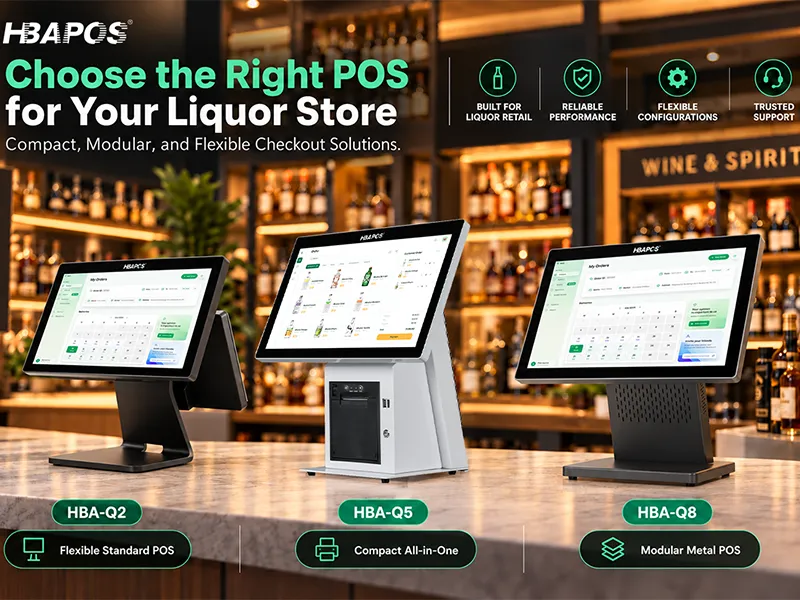
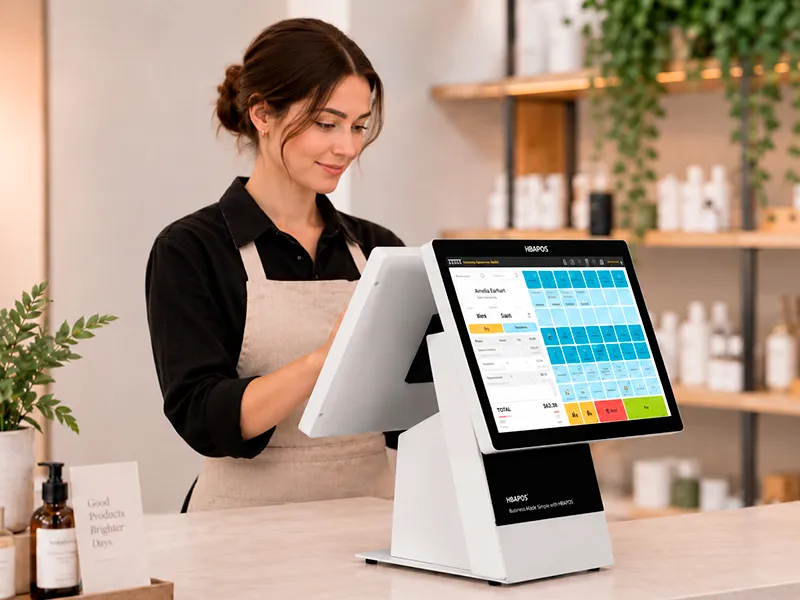
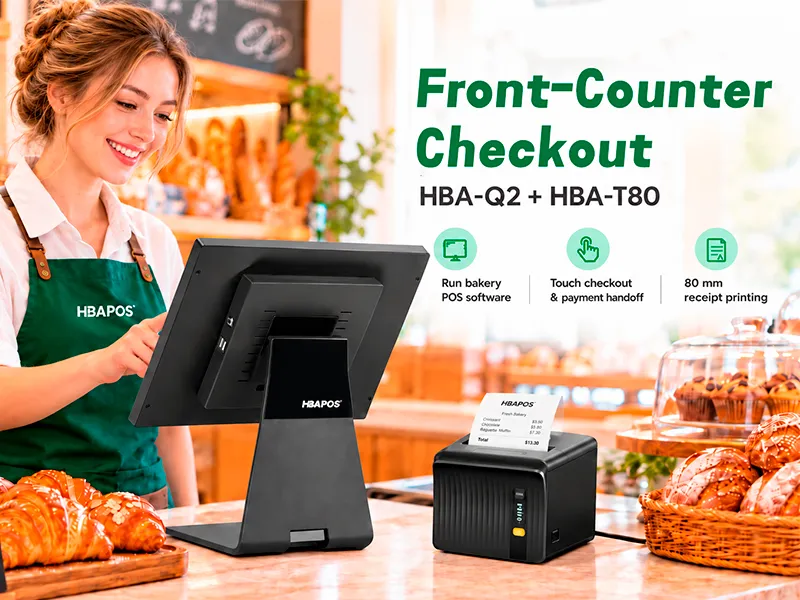
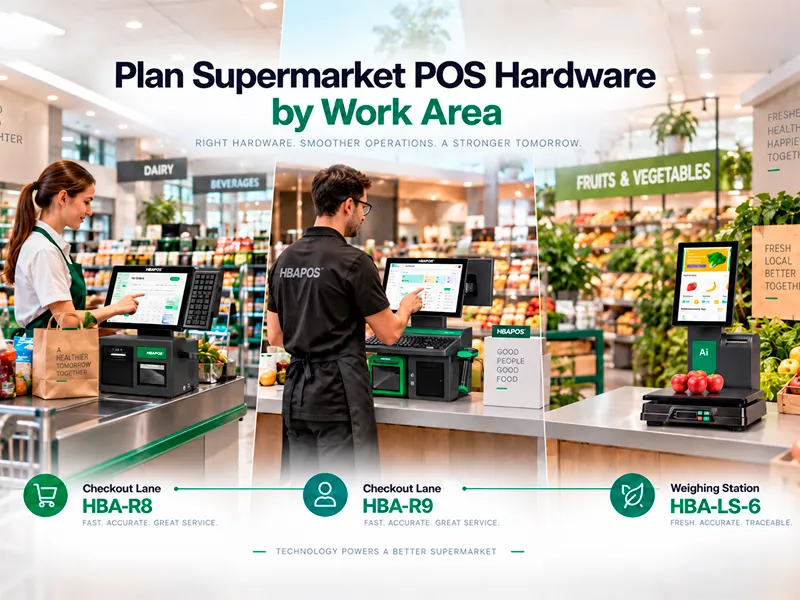
A dual screen POS system should be configured around what the customer needs to see, what the POS software can output, and how much counter space is available. The largest display is not automatically the best choice.
A compact VFD or small LCD may be sufficient for transaction confirmation, while a larger screen may be more suitable for item lists, images, promotions, or a branded customer interface.
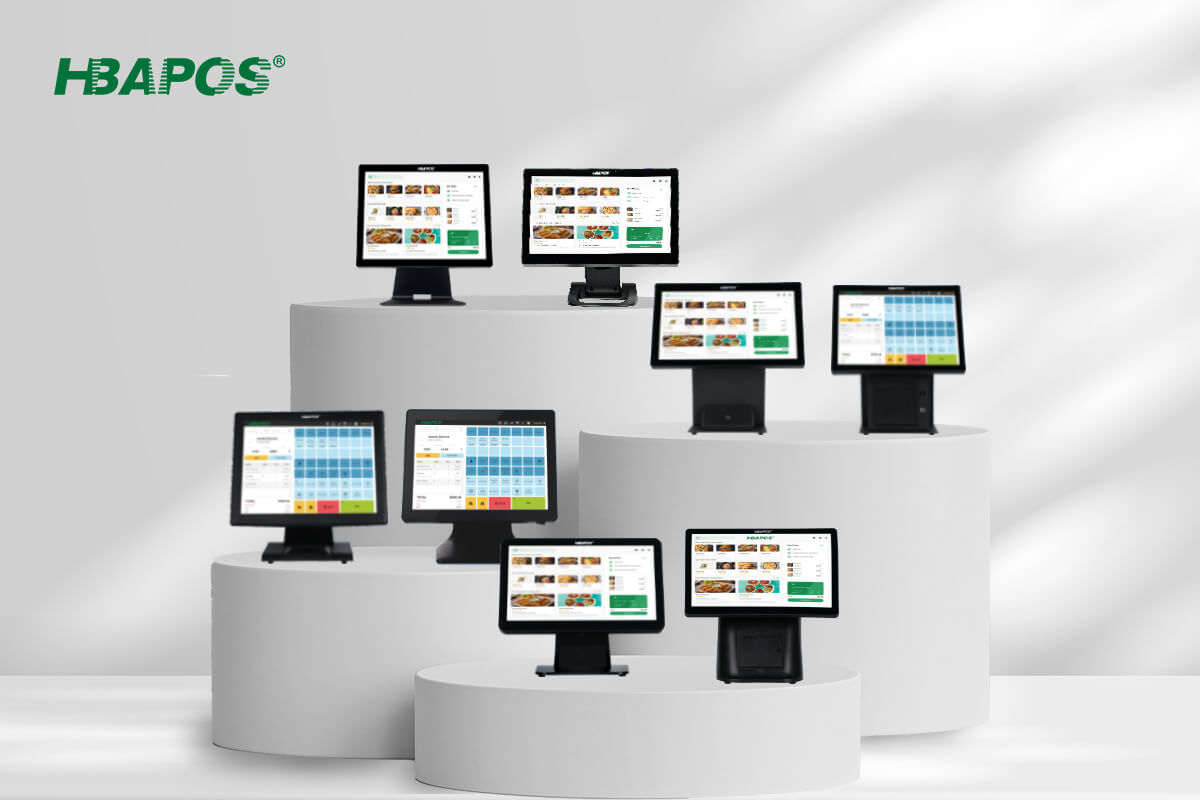
HBAPOS offers customer-display options across its broader POS hardware range, including VFD220, 9.7-inch, 11.6-inch, 13.3-inch, 15-inch, and 15.6-inch formats. These are portfolio-level options. Availability varies by POS model and configuration, so the exact display, mounting structure, interface, resolution, and touch requirement should be confirmed before quotation or sample production.
This guide helps POS software providers, distributors, system integrators, and store buyers define the right customer-facing display before ordering hardware.
Start With the Customer-Facing Workflow

Choose the display according to its job at the checkout counter. Begin by defining the information that the customer must see during a transaction.
- Basic transaction confirmation: item price, quantity, subtotal, total, and payment status.
- Compact order summary: several lines of order information, membership status, or a QR code.
- Visual customer interface: product images, promotions, loyalty content, digital receipts, or a more detailed basket view.
- Interactive workflow: signature, tip selection, customer input, or other touch-dependent functions, if the POS software and selected hardware support them.
This distinction matters because “customer display” can refer to very different devices. A text-oriented VFD is not interchangeable with a full graphical LCD, and a graphical screen is not necessarily a touchscreen. The software requirement should therefore come before the size decision.
Customer Display Size Comparison
The table below is a selection guide rather than a model compatibility chart. Final availability and specifications must be checked against the selected HBAPOS terminal.
| Customer display option | Practical role to consider | Main purchasing questions |
|---|
| VFD220 | Short transaction text where a simple, compact display is enough | What text and character format does the software output? Which interface is required? |
| 9.7 inch | Order details, images, or customer information in a moderate display area | What aspect ratio, mounting position, and video connection are needed? |
| 11.6 inch | A balanced option for richer customer-facing content without using a full-size rear screen | Will the application open on the second display at the correct resolution? |
| 13.3 inch | More room for basket details, branding, or promotional content | Can the counter and mounting structure support the required viewing angle? |
| 15 inch | Large-format customer content and layouts designed around a full-size screen | Is the physical footprint suitable, and does the software support the target resolution? |
| 15.6 inch | Wide graphical layouts where a larger viewing area is preferred | Confirm aspect ratio, resolution, mounting, power, interface, and software scaling. |
VFD220 for Focused Transaction Information
VFD220 is worth considering when the customer only needs concise transaction information. It can keep the checkout setup compact and avoid allocating screen area to content the software does not use.
Before selecting it, confirm the communication interface and the exact text output supported by the POS application. A VFD workflow normally depends on application-level control, so physical connection alone does not establish software compatibility.
9.7-Inch to 13.3-Inch Displays for More Visual Content
The 9.7-inch, 11.6-inch, and 13.3-inch range provides more room for order details and graphical content. These sizes may be useful when the customer display needs to show a readable basket, branded imagery, loyalty information, or promotions alongside transaction data.
The middle of the range is often a practical starting point, but the decision still depends on viewing distance, aspect ratio, mounting position, and software layout. Two screens with similar diagonal sizes can behave differently if their resolutions or proportions are different.
15-Inch and 15.6-Inch Displays for Full-Size Layouts
A 15-inch or 15.6-inch customer display may fit projects that need a larger customer interface or more visible content. It also requires more attention to the terminal structure, counter depth, cable routing, and viewing angle.
Do not select a large display only because it looks more capable. If the application shows only a total and payment status, the additional size may not improve the workflow. If the software uses a detailed second-screen interface, however, a larger format can give the layout more usable space.
Confirm Windows Display Behavior Before Choosing Hardware
HBAPOS supplies Windows-based POS hardware for this workflow. In Windows, the second display can normally be configured in Duplicate or Extend mode. Microsoft explains that Duplicate shows the same content on both displays, while Extend creates a larger desktop and allows content to move between screens.
For most applications with a dedicated customer window, Extend mode is the relevant starting point, but the POS software must still know which screen should show that window. See
Microsoft’s guidance for multiple monitors in Windows.
Before ordering, ask the software team to confirm:
- Whether the application uses a dedicated second-screen window, browser page, or mirrored operator screen.
- Whether it requires Windows Extend or Duplicate mode.
- The supported resolution, aspect ratio, scale setting, and orientation.
- Whether the customer-facing interface launches automatically on the correct display.
- Whether touch input is needed and, if so, how touch is mapped to the customer display.
- Which video, USB, serial, or other connection is required.
These answers are more useful than requesting “a dual-screen model” without a software specification.
Match the Display to the Installation Environment
The same POS system dual screen configuration may work differently in a supermarket lane, restaurant counter, service desk, or compact retail kiosk. Review the physical installation before finalizing the screen.
Counter Space and Mounting
Record the available width, depth, and height. Check whether the display is integrated into the POS stand, attached at the rear, or installed with another mounting method. Also confirm that the selected position does not obstruct the cashier, customer, scanner, receipt printer, or cash drawer.
Viewing Distance and Angle
Estimate where the customer stands and how far the screen will be from eye level. A compact display can be effective at close range, while a larger display may be easier to read from farther away. Glare, ambient lighting, and the angle between the operator and customer sides should also be considered.
Cable and Port Planning
Confirm the display interface and power arrangement before production. Port type, port quantity, cable exit direction, and cable length can affect installation. If the POS also connects to a printer, scanner, cash drawer, or other peripherals, review the complete port allocation instead of checking the customer display in isolation.
Information to Send for an Accurate Recommendation and Quote
Because customer displays are optional and model-dependent, pricing cannot be based on screen size alone. A complete request helps HBAPOS identify a suitable terminal and avoid quoting an incomplete configuration.
Send the following information:
- Target POS model, or photos and dimensions of the preferred machine style.
- Required customer-display type or preferred size.
- Content to be shown: text, totals, item list, QR code, images, promotions, or interactive controls.
- Required resolution, aspect ratio, orientation, and touch function, if specified by the software provider.
- Windows version and POS application requirements.
- Required display and peripheral interfaces.
- CPU, RAM, storage, color, logo, packaging, and other optional requirements.
- Sample quantity and expected production quantity.
- Destination country for shipping estimation.
Buyers who have not selected a model can review the
HBAPOS POS hardware range. The
HBA-Q2 and
HBA-Q3 pages show examples of POS terminals with model-specific customer-display configurations. They should not be used as a compatibility list for the entire product range.
A Simple Decision Sequence for B2B Projects
Use this sequence to narrow the configuration without turning the purchase into a general hardware comparison:
- Define the customer content. Decide what appears during and after a transaction.
- Obtain the software display requirements. Record the operating mode, resolution, scaling, orientation, interface, and touch requirement.
- Measure the installation area. Include viewing distance, counter depth, and nearby peripherals.
- Select a display category. Compare VFD220, 9.7-inch to 13.3-inch graphical displays, and 15-inch or 15.6-inch full-size displays.
- Confirm the model-to-display combination. Ask HBAPOS to verify availability, mounting, ports, and configuration.
- Request a configuration-based quotation. Include the computer specification and all optional items.
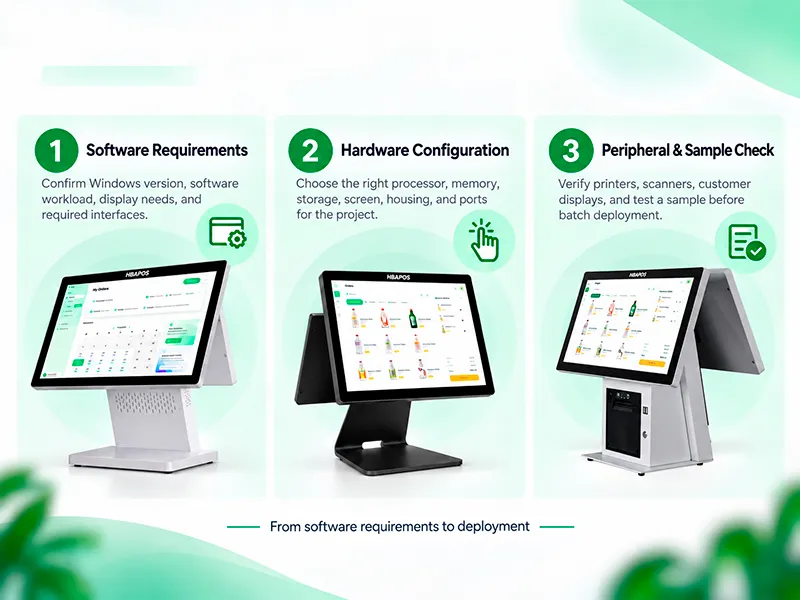
- Use a sample when software behavior must be confirmed. The exact evaluation scope can be agreed separately from the size-selection process.
HBAPOS can start with one sample unit, and sample production can be arranged within seven days after the configuration is confirmed. This refers to production time, not shipping or delivery time. Customers may provide their Windows software installer or remotely access a sample terminal when application verification is needed.
Conclusion
The right customer display is the one that fits the software workflow, the viewing environment, and the selected POS terminal. VFD220 addresses a different need from 9.7-inch to 13.3-inch graphical screens or full-size 15-inch and 15.6-inch displays. Treat size as one part of the configuration, not as a standalone compatibility decision.
To receive a relevant recommendation and price, send HBAPOS the customer-facing content, software display requirements, preferred machine style, interfaces, computer configuration, quantity, and installation constraints through the
contact page.
Frequently Asked Questions
Does every HBAPOS POS model support every customer display size?
No. VFD220, 9.7-inch, 11.6-inch, 13.3-inch, 15-inch, and 15.6-inch options are covered in this guide, but model compatibility varies. Confirm the selected terminal, mounting structure, interface, resolution, and other configuration details before ordering.
Is a larger customer display always better?
No. A larger display is useful only when the software and customer workflow need the additional visual area. Simple totals or short transaction text may be better served by a compact display, while item lists, images, and promotional content may justify a larger screen.
Should a Windows POS customer display use Duplicate or Extend mode?
It depends on the POS application. Duplicate mode shows the same content on both screens. Extend mode allows the application to place a separate customer-facing window on the second display. Confirm the required mode with the software provider.
Does selecting a graphical customer display mean it supports touch?
Not necessarily. Screen size and touch capability are separate specifications. State whether customer input is required and confirm touch hardware, connection, driver behavior, and software support for the selected configuration.
Why does the quotation depend on more than the display size?
The price depends on the complete build, including the POS model, customer display, CPU, memory, storage, interfaces, optional functions, customization, quantity, and shipping requirements. A configuration list is therefore necessary for an accurate quotation.