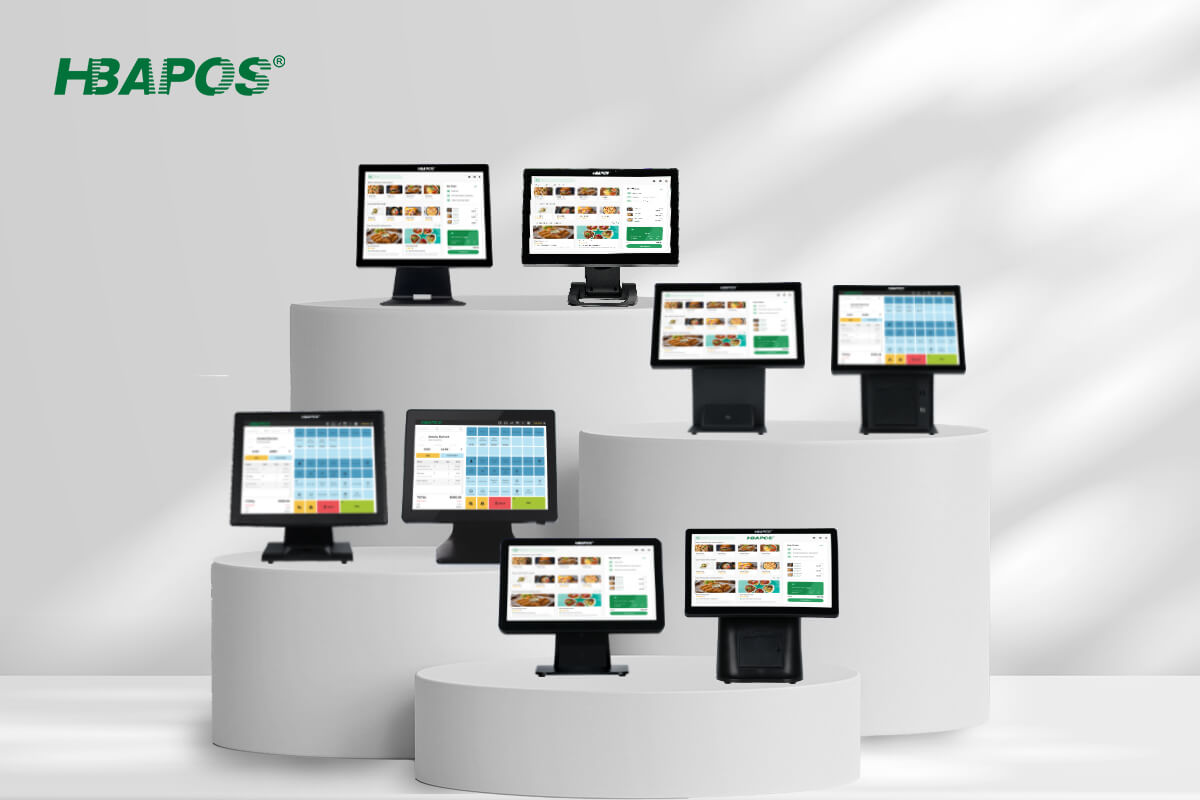
When planning a restaurant POS system with a kitchen display, start by deciding where staff need to see and act on an order. A cook may need only the items assigned to the hot line, while the person checking orders at the pass needs a view of the whole ticket. Those jobs determine how many screens to install, how large they should be, and where to mount them.
A kitchen display system (KDS) presents orders from the restaurant’s ordering system. HBAPOS supplies the HBA-K1 and HBA-K2 as wall-mounted terminals with Windows. The customer installs their own KDS software, which determines how orders are received, routed, and marked complete.
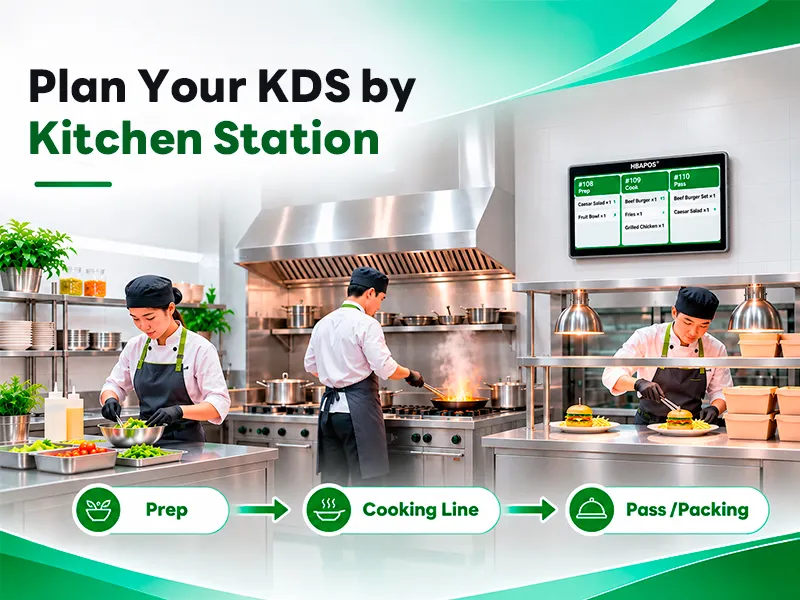
Plan the Restaurant POS System with Kitchen Display by Station

A small kitchen can start with one shared screen if the same team prepares and checks orders within sight of it. For separate work areas, first map who prepares each item and who checks the completed order. Use that map to decide whether each area needs a dedicated display.
For example, an order with a burger and a side salad could send the burger to the hot line and the salad to cold prep. The pass can then use a full-order view to check both items before handoff. Ask your software provider whether your setup supports these separate views and how it handles changes after an order has been sent.
Choose Screen Size from the Actual Viewing Position
Both product pages list screen sizes of 15.6 inches, 18.5 inches, 21.5 inches, and 27 inches. Start by evaluating the smaller sizes at a compact workstation. Consider a larger size if staff read the screen from farther away or need to see more open tickets at once. The ticket layout and text size in your software affect readability as much as the diagonal size.
Stand where staff actually work and open the busiest order view you expect to use. Check that the longest modifier or note is readable from the farthest working position. If staff mark orders complete on the screen, check whether they can reach it without leaning over equipment. Repeat the check under the lighting used during service, with shelves and equipment in place.
Compare HBA-K1 and HBA-K2 for Wall Mounting
Both models mount on a wall. The main differences for this guide are the enclosure material and protection for the installation environment.
The
HBA-K1 has water, oil, and dust protection across the whole unit. If the station has a specific exposure or cleaning requirement, confirm the permitted conditions and cleaning method for the exact configuration before ordering.
The
HBA-K2 is a steel-housed option for a more sheltered position, such as a pass away from cooking and wash areas. For either model, request the mounting drawing for the chosen screen size. Check bracket fit, cable access, and room to service the terminal after nearby equipment is installed.
Confirm the Windows App and Order Connection
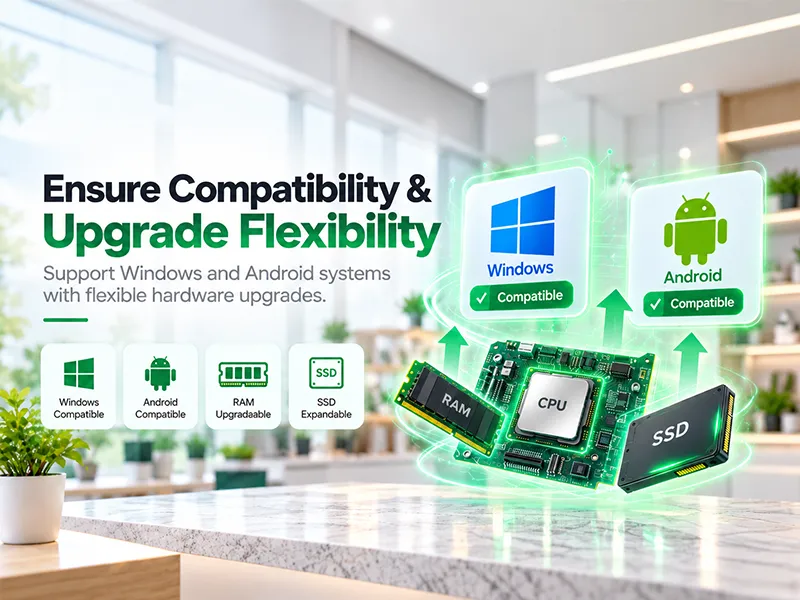
Give your software provider the planned Windows version and terminal configuration. Confirm how the front POS sends orders to the KDS, what network access it needs, and who configures routing by item or station. A wired connection is worth evaluating where the site can provide a network drop. If the project uses Wi-Fi, confirm the hardware option and test the connection at the intended mounting position.
Run a mixed order through the actual POS and KDS software before rollout. Check that items reach the assigned stations, a modifier is displayed in full, and an order change appears where staff expect it. Then ask the software provider what happens to open and incoming orders during a connection interruption and after recovery.
What to Share Before Requesting a Quote
- The number of screens and the work area each screen will serve.
- The viewing position, available wall space, and a photo or layout of each location.
- Expected exposure to water, oil, and dust, along with the cleaning method.
- KDS software requirements, preferred Windows version, and planned network connection.
Send these details to
HBAPOS to review the screen sizes and mounting requirements for your project.
Frequently Asked Questions
Can one kitchen display serve multiple stations
A shared display can work when staff can see it from their work positions and the software can present the order details each person needs. Consider separate displays when stations need different queues or staff cannot read and use a shared screen comfortably.
Who supplies the kitchen display software
HBAPOS provides the terminals with Windows. The customer installs their own KDS software and confirms its POS integration, station routing, and order status functions.