Windows POS hardware requirements should start with the software provider's specification. Choose the exact processor and supported Windows edition first, then size memory for the applications running together and SSD capacity for the operating system, software, local data, and updates. A processor label or a supplier's standard configuration cannot establish whether a complete POS application will run well.
For software companies, distributors, and system integrators, an existing specification is usually the starting point. Store operators without a defined specification can use a supplier's current standard package for discussion, then confirm it with their software provider. This guide explains how to make those decisions without tying every workload to a particular terminal model.
Start With the Software Specification
Ask for both minimum and recommended hardware requirements. The minimum describes the software vendor's lower boundary; the recommended configuration is a more useful starting point for daily operation. Confirm whether those figures cover only the checkout application or also include its database, browser, reporting tools, remote support, and background services.
- Record the application name, version, supported Windows edition, and required 32-bit or 64-bit environment.
- Identify whether the terminal stores its database locally or connects to a server or cloud service.
- List the programs that remain open during a busy shift, including security and management tools.
- Confirm the display arrangement and the drivers needed for printers, scanners, cash drawers, and other devices.
A browser-based POS still needs local computing resources. Network latency or a slow remote server can also affect checkout response, so a processor upgrade should follow an identified local limitation rather than every report of a slow transaction.
Choose a CPU by Its Exact Model and Generation

The CPU executes application instructions and contributes to tasks such as item lookup, local database queries, report generation, and background processing. Its suitability depends on the exact application and the complete terminal design.
HBAPOS configuration options include J6412, N97, and Intel Core i3, i5, and i7 platforms. The available Core range covers selected configurations from the 3rd through the 13th generation, excluding the 9th generation. This is a portfolio range: availability depends on the terminal, motherboard, and current supply, and does not mean every processor and generation can be combined with every model.
Why the Core Label Alone Is Not Enough
An older Core i7 is not automatically a better choice than a newer Core i5 or i3. Generation, exact model, core and thread arrangement, supported memory, power limits, and cooling all affect the comparison. Intel explains how model names identify processor families and generations in its
processor naming guide.
Request the full CPU model on the quotation. A description such as Core i7 3rd generation identifies a broad platform, but the exact processor is still needed to check operating-system support and compare technical specifications. Apply the same discipline to J6412 and N97 instead of treating them as interchangeable entry options.
For a single checkout application, evaluate the processor against the software vendor's recommendation. If the terminal also runs a local database, reporting, synchronization, or several applications, evaluate that combined workload. Compare candidates under the same software and operating conditions; avoid assigning guaranteed transaction speeds to processor names.
Decide Between 4 GB 8 GB and 16 GB of RAM
RAM holds the information that Windows and active applications need while they run. When memory is insufficient, Windows may use storage more heavily for paging, which can reduce responsiveness. More RAM is useful when memory is the constraint, but it will not fix a network problem or make unsupported software compatible.
HBAPOS offers 4 GB, 8 GB, and 16 GB memory options, subject to the selected board. The following is a selection framework, not a compatibility guarantee.
If the software provider recommends 8 GB, a 4 GB supplier package should be revised before ordering. Likewise, choose 16 GB for a defined requirement or measured need rather than as a substitute for checking the application.
Choose SSD Capacity From the Data You Keep
The SSD stores Windows, installed applications, and files that remain after shutdown. RAM and SSD capacity solve different problems: increasing storage does not increase working memory.
HBAPOS storage choices include 128 GB, 256 GB, 512 GB, and 1 TB SSDs, subject to the selected motherboard and drive compatibility. Estimate the space needed for the Windows installation, application and database files, product images, logs, retained exports, and temporary update files. Allow additional free space for normal operation and expected growth. Usable space will be lower than the advertised capacity after formatting and system partitions.
Capacity alone does not establish SSD speed or interchangeability. Confirm the drive interface and physical format supported by the motherboard before ordering or buying a replacement. Do not assume every terminal accepts NVMe drives or that two drives with the same capacity have the same performance. Keep backups separately from the operating drive; additional SSD space is not a backup strategy.
Confirm Windows Compatibility Before Finalizing the Hardware
Customers normally specify the operating system, while the selected hardware and available drivers constrain what can be supported. Confirm the edition, release, architecture, licensing arrangement, and support lifecycle with the software provider and supplier.
For standard Windows 11 deployments, Microsoft's published requirements include a compatible processor, 4 GB RAM, 64 GB storage, UEFI with Secure Boot capability, and TPM 2.0. Those are OS minimums, not POS sizing recommendations. Check the
Windows 11 system requirements and the processor requirements for the intended release. Adding RAM or an SSD alone does not establish eligibility.
Windows 10 Home and Pro version 22H2 reached end of support on October 14, 2025. Extended Security Updates and LTSC products have separate terms or lifecycles. Projects that require Windows 10 should identify the exact edition and update plan; see
Microsoft's lifecycle notice.
Do not assume that a successful installation establishes official support. Older hardware should be checked by exact CPU, motherboard, firmware, drivers, and Windows release. Android configurations belong to a separate platform choice and are outside this Windows guide.
Use Current Standard Configurations as Examples
A standard package is a commercial starting configuration, not a permanent specification or proof that it meets a particular software requirement. HBAPOS adjusts standard packages as motherboard purchasing and supply change. The following examples were confirmed in October 2026 and must be reconfirmed when requesting a quotation.
The
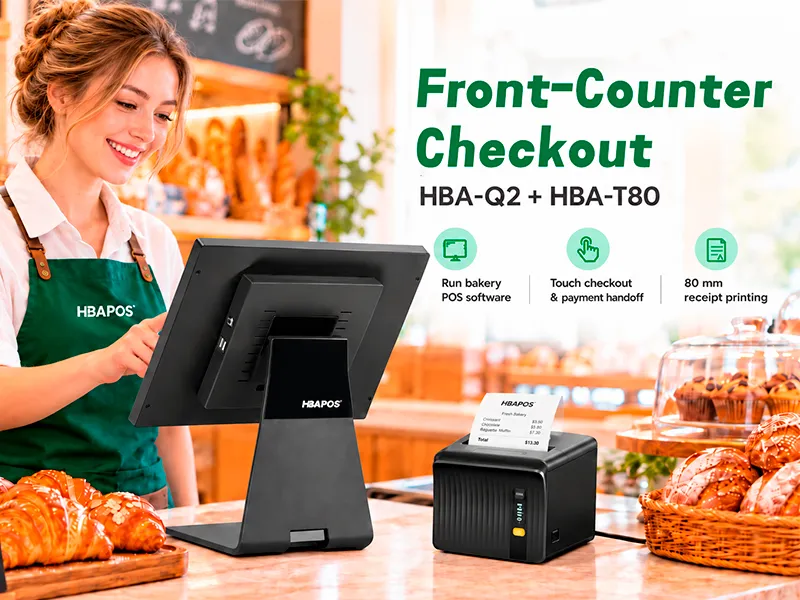
HBA-Q2 is a metal POS terminal for counter installations. The
HBA-L2 offers an aluminum body and slim display for countertop use. The
HBA-Q1CX is a compact price-checking and mini POS platform with an integrated scanner; its software determines the query and transaction workflow.
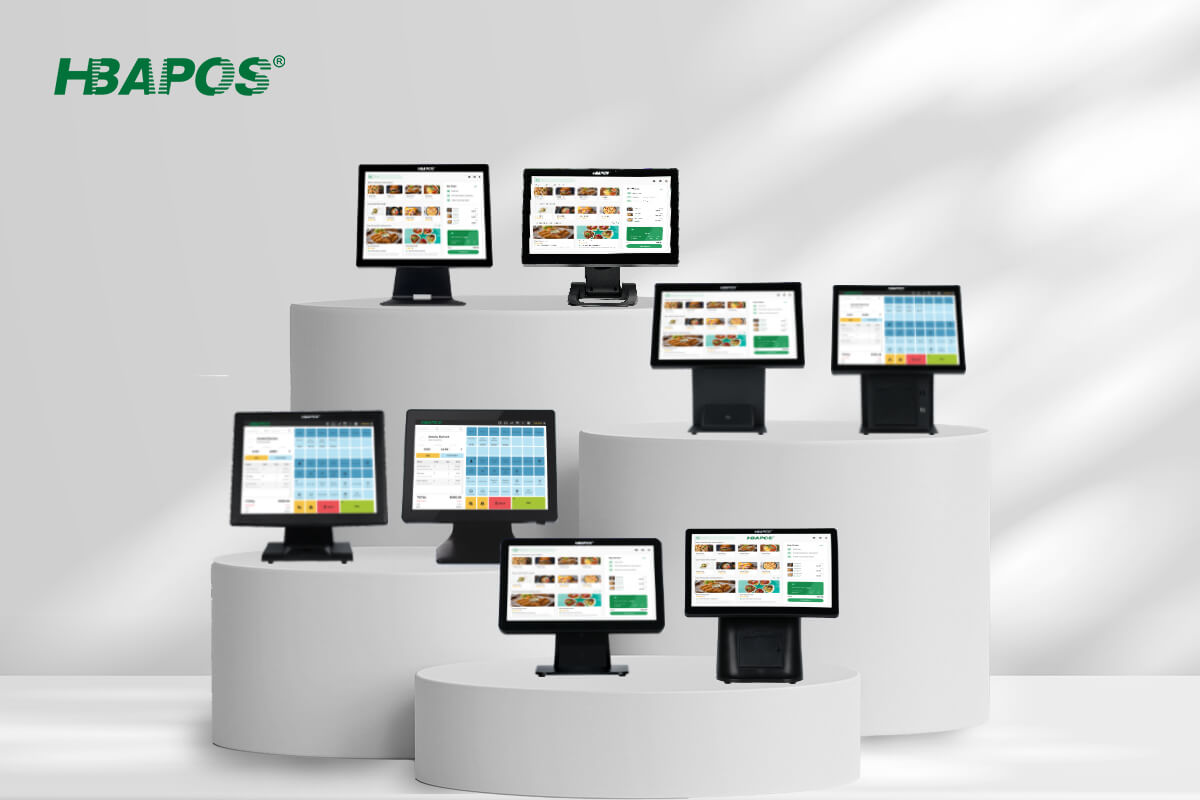
These examples illustrate how different products may ship with different starting configurations. They are not Windows 11 recommendations or a performance ranking. Confirm the full CPU model, motherboard, Windows compatibility, and software acceptance before adopting one. A product photo shows the physical design; the quotation defines the computing configuration supplied.
Confirm Upgrade Options Before Ordering
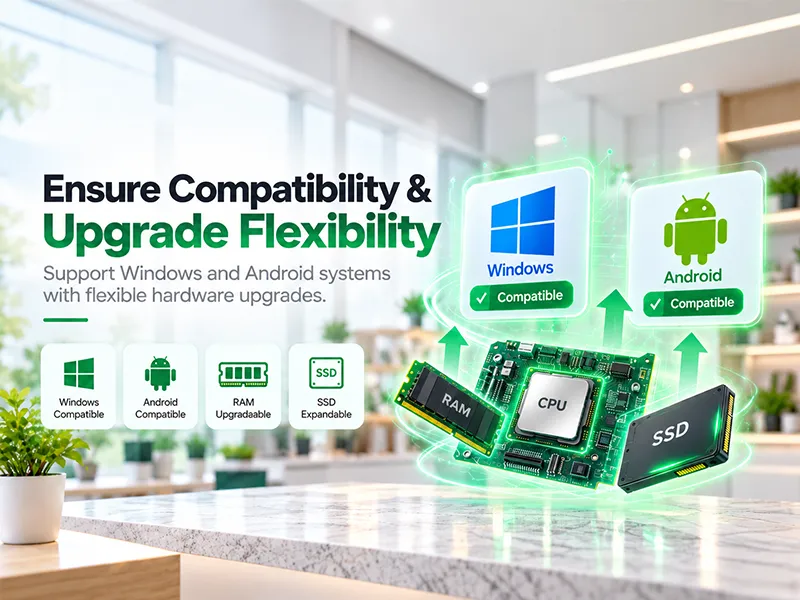
CPU, RAM, SSD, and operating-system requirements should be agreed before the order. HBAPOS can support later memory and SSD replacement or upgrades where the selected hardware permits, but the replacement components must be purchased separately.
Before relying on a future upgrade, confirm the memory type, supported maximum capacity, available slots, and SSD interface and format. Motherboards differ, so a future 4 GB to 16 GB change should not be promised without checking the board. CPU upgrades require a separate compatibility assessment and should not be assumed from memory or storage upgradeability.
For an SSD replacement, plan backup, system migration or reinstallation, software activation, and driver restoration. Have a qualified technician perform the work following the supplier's service guidance, with the terminal powered off and disconnected.
Send a Complete Configuration Request
If your company already has a hardware specification, send it with the inquiry and ask the supplier to identify any proposed substitutions. If you are starting from a standard package, send your software requirements first so the configuration can be checked before quotation.
- Software name and version, minimum and recommended requirements, and local or remote database arrangement.
- Requested terminal, exact CPU model or approved alternatives, RAM capacity, and SSD capacity.
- Windows edition and release, driver needs, displays, ports, and peripherals.
- Future upgrade requirements, order quantity, destination, and any branding or packaging needs.
Record the agreed motherboard, CPU, memory, SSD, operating system, and interfaces on the order. Configuration and supply affect the quotation, so HBAPOS quotes against the confirmed requirements. Validate the actual application on the proposed hardware before approving a configuration for deployment.
Frequently Asked Questions
Is Core i7 Always Better Than Core i5 for POS
No. Compare the full CPU model, generation, supported platform, and actual workload. The Core label alone does not establish which terminal will better meet the software requirements.
Is 4 GB of RAM Enough for a Windows POS Terminal
It can be considered only if the software provider supports it and the complete running system has enough memory. Windows eligibility and the application's recommended RAM must both be checked. A supplier's 4 GB package is not a universal recommendation.
Should I Choose a 128 GB or 256 GB SSD
Estimate the installed system, local database, retained files, updates, and expected growth. Consider 128 GB for a compact installation and evaluate 256 GB when more local space is required. Confirm usable space after installation rather than deciding from the capacity label alone.
Can I Upgrade RAM and SSD After Buying the Terminal
Later replacement may be possible within the motherboard's memory and drive limits. The upgrade parts are purchased separately. Confirm compatibility, service access, and migration needs before buying them.
Conclusion
Choose Windows POS hardware by matching the software specification to an exact processor, sufficient RAM, suitable SSD capacity, and a supported operating-system configuration. Use standard packages as examples to evaluate, and document the final configuration before ordering. Send your software requirements and preferred hardware specification to
HBAPOS for a configuration-specific quotation.